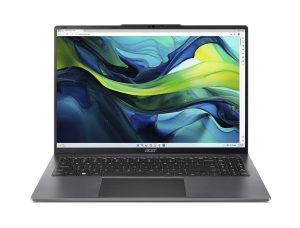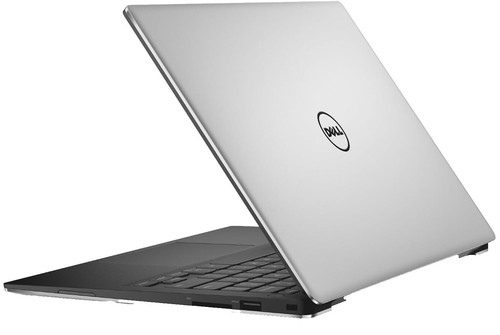
The Dell XPS 13 9315 2-in-1 is one of the thinnest, most elegant Windows convertibles ever built — and it has always been honest about its weak spot: battery life. When the original pack starts giving you two hours instead of five, the fix usually isn’t a new laptop. It’s a G8W13 4123mAh replacement battery.
This guide covers the three things XPS 13 9315 owners ask us about most: why the battery runtime gets so short, why the battery stops charging, how to tell whether the battery is actually damaged — plus the everyday scenarios a fresh G8W13 brings back to life.
| Specification | Detail |
|---|---|
| Battery model | G8W13 |
| Replacement part number | 07HFP9 |
| Capacity | 4123mAh / 49.5Wh |
| Voltage | 11.4V |
| Cell type | 3-Cell Li-ion / Li-Polymer |
| Compatible systems | Dell XPS 13 9315 2-in-1 series |
| Typical certifications | CE · FCC · RoHS · UL-style safety approvals |
Why the XPS 13 9315 Battery Runs Out So Fast
Even brand new, the XPS 13 9315 2-in-1 was never an endurance champion. Reviewers measured roughly 4.5 to just over 5 hours of mixed daily use, with heavier loads pushing it below four hours. The cause is a simple trade-off baked into the design: a razor-thin, fanless chassis paired with a bright, high-resolution 13-inch 3K touchscreen and a 12th-gen Intel U-series processor — all drawing from a modest 49.5Wh (4123mAh) pack.
So when owners say their battery “drains fast,” there are really two different stories hiding behind that phrase:
- Normal heavy-drain — the display, the always-on web apps, and background sync simply consume power quickly on this machine. A two-hour video call in a bright room can flatten it.
- Worn-out capacity — the cells have chemically aged, and the battery now stores a fraction of its original 49.5Wh. This is the case a replacement battery solves.
How lithium-ion capacity fades
A lithium-ion pack typically loses around 20% of its capacity every 300–400 full charge cycles. For a laptop charged daily, that works out to roughly:
| Age / cycles | Approx. remaining capacity | What you’ll notice |
|---|---|---|
| New | 100% | Full 4.5–5.5 hours of real use |
| ~1 year | 85–90% | Barely noticeable loss |
| 2–3 years | 60–75% | Need the charger by early afternoon |
| 3–4+ years | under 50% | Dies in 1.5–2 hours; unpredictable shutdowns |
Heat is the great accelerator. A fanless design running warm on a soft surface (a bed, a couch, a lap) will cook its own battery faster than one kept on a hard, ventilated desk.
Battery Won’t Charge? Diagnose Before You Buy
“Not charging” is the single most misdiagnosed laptop symptom. Most of the time it isn’t the battery at all — but it sometimes is. Work through these checks in order, cheapest and easiest first.
1. Check the charger and cable
The XPS 13 9315 ships with a 45W USB-C charger. USB-C chargers fail quietly: the cable frays, the connector collects lint, or a third-party brick simply can’t deliver enough wattage. Try a known-good 45W-or-higher USB-C charger and a different cable and wall outlet before blaming the battery. If the laptop charges fine on another adapter, you don’t need a battery — you need a charger.
2. Read the charging LED
Plug in with the laptop powered off and watch the charging indicator:
Normal
Solid white / green — the battery is charging normally.
Caution
Amber / orange solid — charging, but the battery’s health may be degraded.
Fault
Blinking amber — battery error or charging-circuit problem. A strong signal the pack needs attention.
No power
No light at all — power isn’t reaching the laptop, or the charging port has failed.
3. Look for a software-imposed charge limit
This trips up a lot of XPS owners. Dell’s BIOS and Windows power settings can deliberately cap charging at 50–80% to prolong battery lifespan. If your laptop “stops at 60%” and never fills to 100%, it may simply be set to a “Primarily AC Use” profile — not a fault.
To check, restart the machine and tap F2 at the Dell logo to enter BIOS, then look under Power > Battery Configuration. If it’s set to a limited charge mode, switch it to Standard or Adaptive and reboot.
4. Run a hard reset and reset Windows power management
A drained static charge or corrupted power profile can mimic a dead battery:
- Shut down, unplug everything, hold the power button for 30 seconds, then reconnect and boot.
- Open Command Prompt as administrator and run
powercfg -restoredefaultschemesto reset power plans to default.
Quick check
If you’re on the original G8W13-capacity battery and it’s over three years old, a charging problem is far more likely to be genuine wear than a configuration quirk. The checks above will tell you which one you’re facing.
Get a hard number from Windows
Rather than guessing, generate a battery report. Open Command Prompt as Administrator and run:
powercfg /batteryreport /output "C:\battery-report.html"
Open the resulting HTML file and compare two figures:
- Design Capacity — what the battery held when new (your 49.5Wh / 4123mAh reference).
- Full Charge Capacity — what it holds now.
| Full Charge vs. Design | Verdict | Action |
|---|---|---|
| Above 80% | Healthy | Keep using it; optimise charging habits |
| 60–80% | Aging | Plan a replacement within 6–12 months |
| Below 60% | End of life | Replace now — a fresh G8W13 restores full runtime |
Safety first
A swollen battery is not a performance problem — it’s a fire risk. Stop using the laptop, unplug it, and do not charge it. Never press on the bulge or puncture the pack. Replace it promptly with a certified G8W13 pack, and store the old battery in a cool, dry place away from anything flammable until you can dispose of it properly.
Everyday Scenarios a Fresh G8W13 Brings Back
Battery health is abstract until it interrupts your day. Here’s where a replacement pack earns its keep:
All-day university and office work
Lectures, note-taking with the XPS stylus, and cloud documents are light loads — exactly where a healthy 49.5Wh pack shines. A worn battery forces you to hunt for a power outlet every 90 minutes; a fresh one covers a full timetable and the commute home.
Field work and site visits
Surveyors, field engineers, and sales reps rarely have reliable power access. A battery that dies at 40% during a client demo is a liability. Replacing it removes the unpredictability that the XPS 13 9315 suffers from most as it ages.
Travel and airtime
Long-haul flights and airport layovers are the classic place a dead battery gets exposed. The XPS 13 9315’s thin body makes it ideal cabin luggage — but only if the hours actually hold. A new G8W13 gives you a realistic half-day of mixed use per charge.
Café and co-working sessions
Working untethered for three or four hours should need no charger at all. Once you’re at that point, you can finally leave the adapter at home.
Meeting rooms and hot-desking
Grabbing a shared desk for one meeting shouldn’t require a scramble for the single free socket — especially when the XPS 13 9315 has only two Thunderbolt 4 ports, both of which you might want for other things.
Keeping a perfectly good machine out of landfill
This is the under-rated scenario. The XPS 13 9315 still has a sharp 3K display, a capable 12th-gen processor, and a premium build. Its only declining component is the battery. A modest replacement part restores a laptop you’d otherwise be tempted to replace for well over $1,000.
Making the New Battery Last
A few habits extend the life of any replacement pack, including a G8W13:
- Avoid deep discharges. Recharge around 20% rather than running to zero.
- Don’t sit at 100% on AC permanently. If the laptop lives on a desk, use Dell’s charge-limit setting to hold around 80%.
- Keep it cool. Use it on hard, ventilated surfaces; a fanless XPS is especially sensitive to heat.
- Cycle it if stored. If you won’t use the laptop for weeks, charge to about 50% and cycle roughly once a month.
- Calibrate once after install. Charge to 100% and leave it two extra hours, drain to about 5%, then charge back to 100%. This re-syncs the fuel gauge.
Fitting the Replacement Correctly
The G8W13 is an internal pack. Before ordering, power down, open the bottom cover, and confirm the model and part number on the old battery match G8W13 / 07HFP9 — Dell uses several packs across the XPS 13 line, so a visual match is worth the two minutes. On installation, make sure the connector seats firmly on the motherboard, and charge with the original or a properly rated charger.