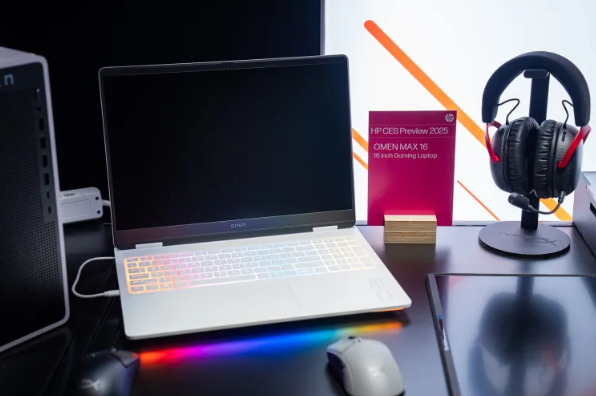
The HP Omen battery is a key component of your gaming laptop, providing the power needed for portable performance. Over time, batteries wear out and may need replacement. In this guide, we’ll explain how to remove the battery from an HP Omen laptop and how to replace the HP Omen laptop battery safely.
What is the HP Omen Battery?
The HP Omen battery is a rechargeable lithium-ion battery designed to support high-performance gaming and heavy workloads. However, like all batteries, it degrades over time due to charging cycles.
- High-capacity lithium-ion battery
- Designed for gaming laptops
- Limited lifespan (typically 2–4 years depending on usage)
Signs You Need an HP Omen Battery Replacement
You may need an HP Omen battery replacement if you notice:
- Battery drains quickly
- Laptop shuts down unexpectedly
- Battery not charging properly
- Reduced performance when unplugged
How to Remove Battery from HP Omen Laptop
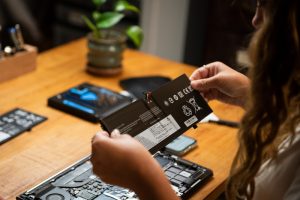
If you are wondering how to remove battery from HP Omen laptop, follow these general steps:
- Turn off the laptop completely and unplug the charger
- Flip the laptop and remove the back cover screws
- Carefully open the back panel
- Locate the battery inside the device
- Disconnect the battery cable from the motherboard
- Remove the screws holding the battery
- Gently lift the battery out of the laptop
Important: Always handle the battery carefully to avoid damage or injury.
How to Replace HP Omen Laptop Battery
To perform an HP Omen battery replacement, follow these steps:
- Insert the new compatible battery into the laptop
- Secure it with screws
- Reconnect the battery cable to the motherboard
- Reinstall the back cover
- Fasten all screws properly
- Power on the laptop and check the battery status
Make sure to use a compatible and high-quality replacement battery for best performance.
Tips to Extend Battery Life
- Avoid overcharging the battery
- Keep your laptop in a cool environment
- Use power-saving modes when possible
- Regularly update system drivers
Safety Precautions
- Always disconnect power before starting
- Avoid using metal tools near internal components
- Do not puncture or damage the battery
- If unsure, seek professional help
Replacing the HP Omen battery can significantly improve your laptop’s performance and mobility. By following the correct steps for removal and replacement, you can safely complete the process and extend the life of your device.